
How to Convert iPhone HEIC to JPG & WebP: The Complete Cross-Platform Guide
Why does Apple default to HEIC? Learn how to effortlessly convert iPhone HEIC and Live Photos to universally compatible JPG or lightweight WebP directly in your browser with zero privacy leaks.
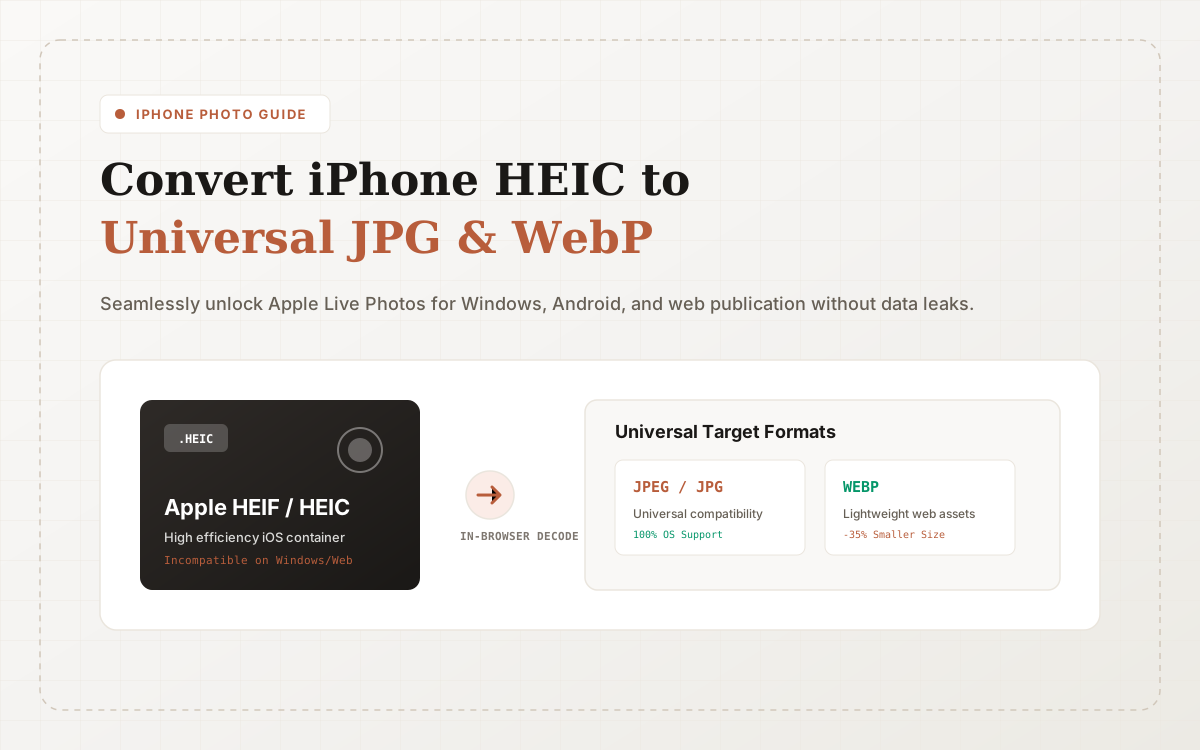
If you use an Apple iPhone or iPad, exporting camera shots to a Windows PC, sharing them with Android colleagues, or uploading them to online forms often triggers frustrating errors: "Unsupported file type (.HEIC)" or "Cannot preview image".
At ConvertZuno, you can solve this friction instantly:
- Need universal compatibility? Use HEIC to JPG;
- Publishing to the web for minimal bandwidth? Use HEIC to WebP.
No need to buy paid codecs on Windows app stores or install suspicious desktop software. Simply drop your files and get batch-converted outputs in seconds.
Why Does Apple Use the HEIC Format?
Starting with iOS 11, Apple adopted HEIC (High Efficiency Image Container) as the default photo capture format:
- Superior Compression Efficiency: HEIC utilizes advanced HEVC (H.265) intra-frame coding, cutting storage footprints by roughly 50% compared to JPEG while preserving identical or better visual quality.
- Rich Container Capabilities: HEIC encapsulates Live Photo sequences, depth map layers, and wide-color (P3) profiles within a single file.
However, its drawback is poor cross-platform software compatibility. Older Windows builds, default Linux photo viewers, legacy desktop design suites (like older Adobe Photoshop or Office packages), and thousands of online portals lack native HEIC decoders.
HEIC to JPG vs. HEIC to WebP: Which Should You Pick?
Depending on your destination, ConvertZuno provides two distinct paths:
1. Choose HEIC to JPG When:
- Submitting to Bureaucratic & Job Portals: Visa applications, government filing systems, and academic portals strictly require
.jpgor.jpeg; - Importing into Desktop Suites: Working in legacy software or standard printing kiosks;
- Sending to Mixed Devices: Ensuring recipients on older phones or PCs can open images without downloading custom viewers.
2. Choose HEIC to WebP When:
- Publishing Web Content: Adding phone-captured event photos or product shots directly to blogs and e-commerce stores;
- Optimizing Mobile Apps: Maintaining HEIC-level file efficiency while achieving 97%+ native browser compatibility;
- Reducing Hosting Costs: Slashing CDN bandwidth and image server storage requirements.
100% Client-Side Privacy: Your Photos Stay on Your Device
Camera rolls contain intimate personal photos, travel memories, confidential business documents, and ID papers. Traditional conversion sites upload these files to remote servers, exposing users to data scraping and AI training risks.
ConvertZuno utilizes browser-side WebAssembly HEIC decoders:
- When you drop
.heicimages into the page, the decoding engine runs inside your browser memory; - Image pixels are rendered and encoded directly to JPEG or WebP on your local machine;
- Your photos never leave your device. No cloud upload, no tracking, complete peace of mind.
Complementary Utilities and Knowledge Base
Expand your optimization workflow across our interconnected tools:
- Once converted, further shrink file payloads with Compress Image;
- Cap files to strict application limits via Compress Image to 200KB;
- Explore broader web delivery techniques in our Image Compression Guide and Complete PNG & JPG to WebP Guide;
- Benchmark modern codecs in our AVIF vs WebP In-Depth Format Duel;
- Learn about platform architecture in Welcome to ConvertZuno or browse the All Tools Directory.
Sources & References
Format and WebAssembly claims link to official references; actual conversion results depend on the source file and encoding settings.
Try ConvertZuno Media Tools Now
Browser-first processing with batch ZIP exports; see the privacy policy for data-handling boundaries.